Converting ArchivesSpace Records to Portal-Ready Metadata
What This Process Does
This automated workflow takes your ArchivesSpace finding aids (EAD) and transforms them into metadata that is ready to upload to the NAPWR Portal.
- Converts your EAD (finding aid) data into portal-compatible format
- Automatically adds Catholic subject headings from controlled vocabulary
- Creates both Portal and Dublin Core formatted outputs
- Identifies vocations, religious titles, and agent names
- Generates quality control reports to catch any issues
5-Step Quick Start
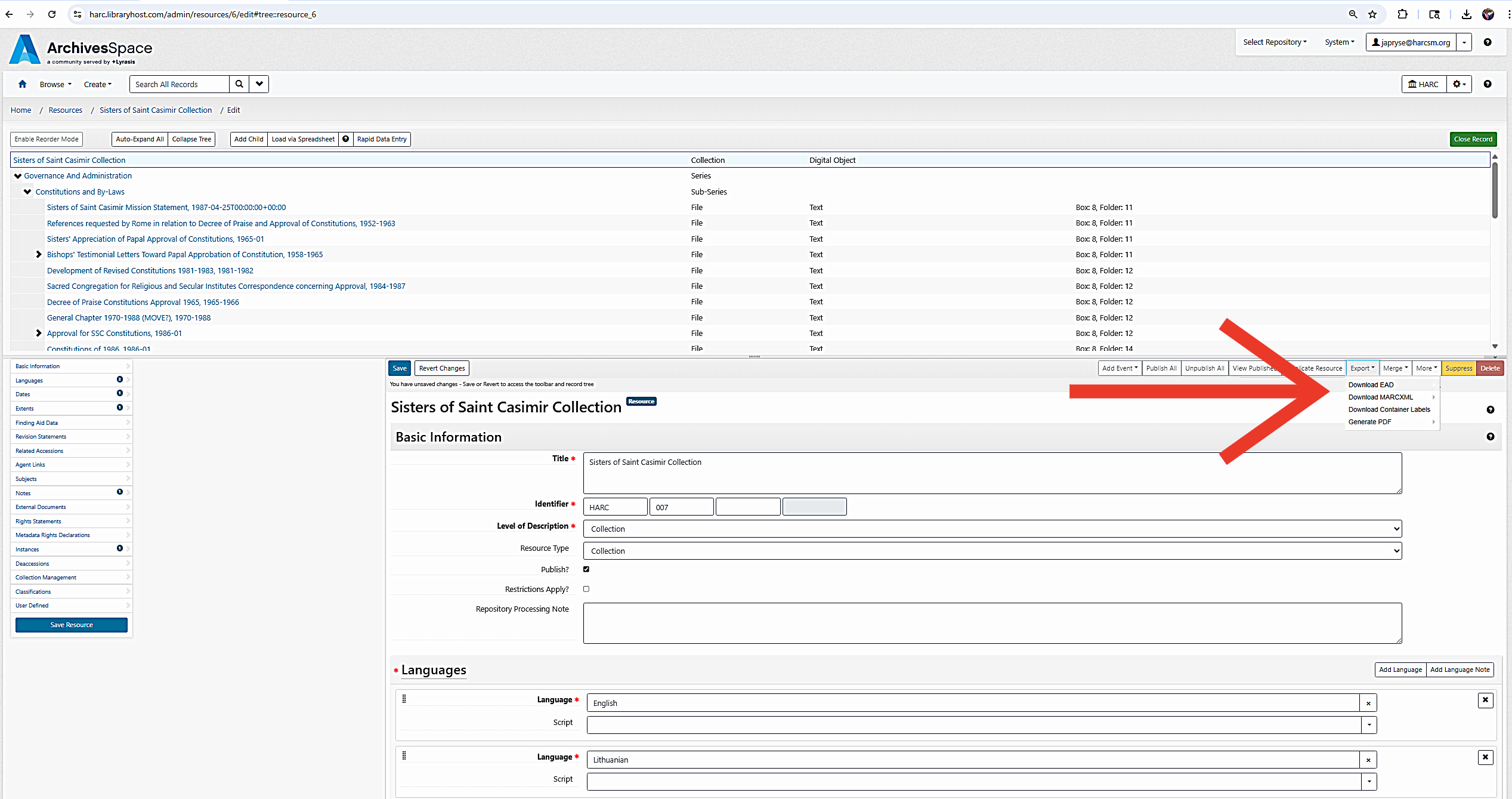
Step 1Export EAD from ArchivesSpace
Open your collection in ArchivesSpace → Click Export → Select EAD format
(Click on the images in the original PDF to zoom in)
Step 2Convert EAD to Excel format in oXygen
Open the EAD file in oXygen XML Editor (23.1) → Load aspace.xpr file and Run the "(2) EAD-3 to Excel" transformation
The output file will include "__ead-excel.xml" in the name.
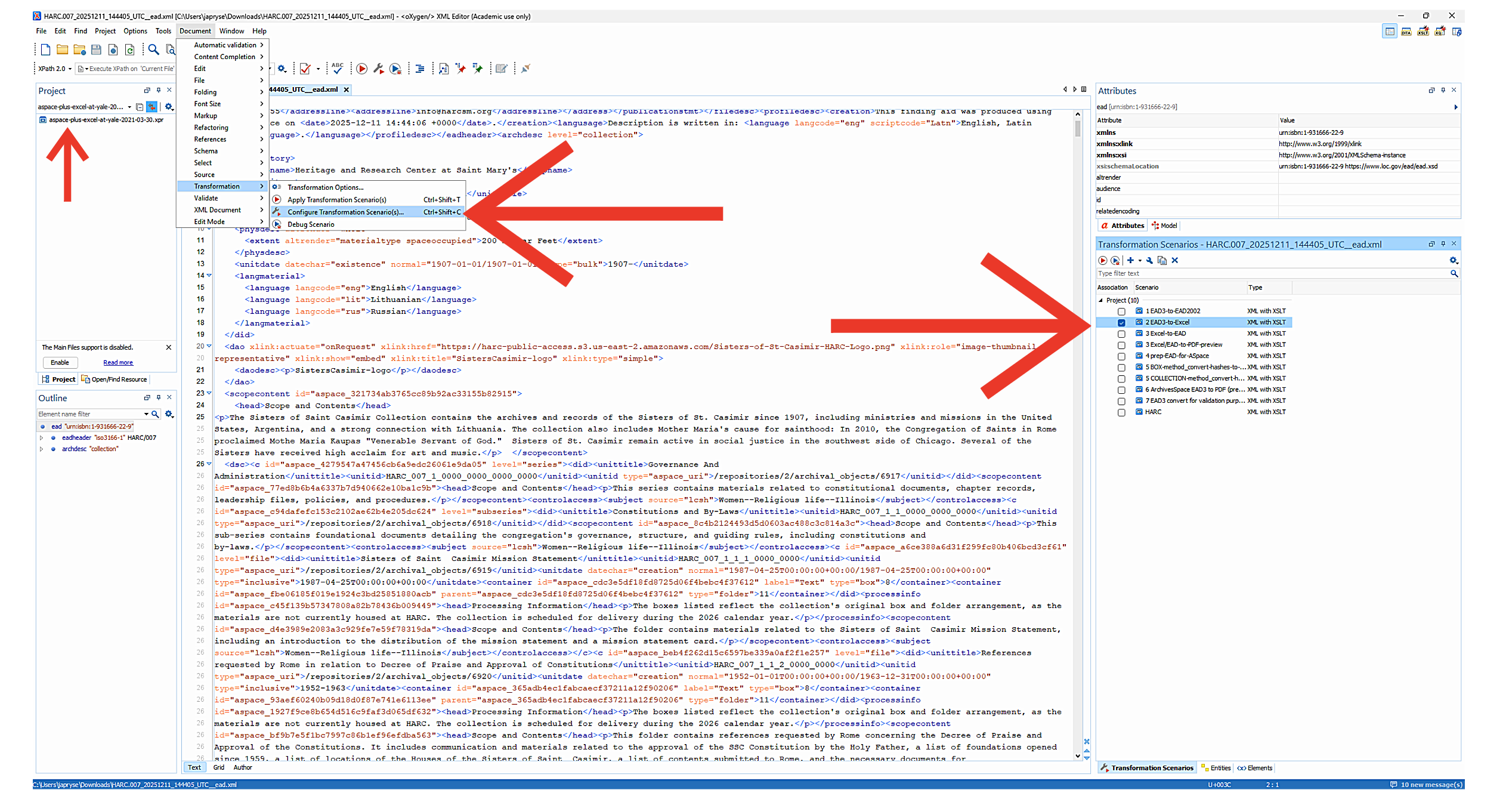
The transformed file is saved to the location of the downloaded EAD.
.png)
Step 3Gather your files in one folder
📁 Create a working folder and place these four files together:
napwr_ead_to_portal_dc.pyEAD-Excel file (HARC.XXX__ead-excel.xml)mapping_ead-dc-portal.xlsx3.2_catholic_subject_headings_controlled_vocab.xlsx
Step 4Run the script
Open Command Prompt or PowerShell in your working folder and run:
python napwr_ead_to_portal_dc.py

--ead-xml "C:\Users\japryse\Desktop\NAPWR\HARC_007\HARC.007_20251211_144405_UTC__ead-excel.xml"

--vocab-xlsx "C:\Users\japryse\Desktop\NAPWR\HARC_007\3.2_catholic_subject_headings_controlled_vocab.xlsx"

--mapping-xlsx mapping_ead-dc-portal.xlsx

--output "C:\Users\japryse\Desktop\NAPWR\HARC_007\output.xlsx"
Shell or Terminal Output Example:

Step 5Review your output
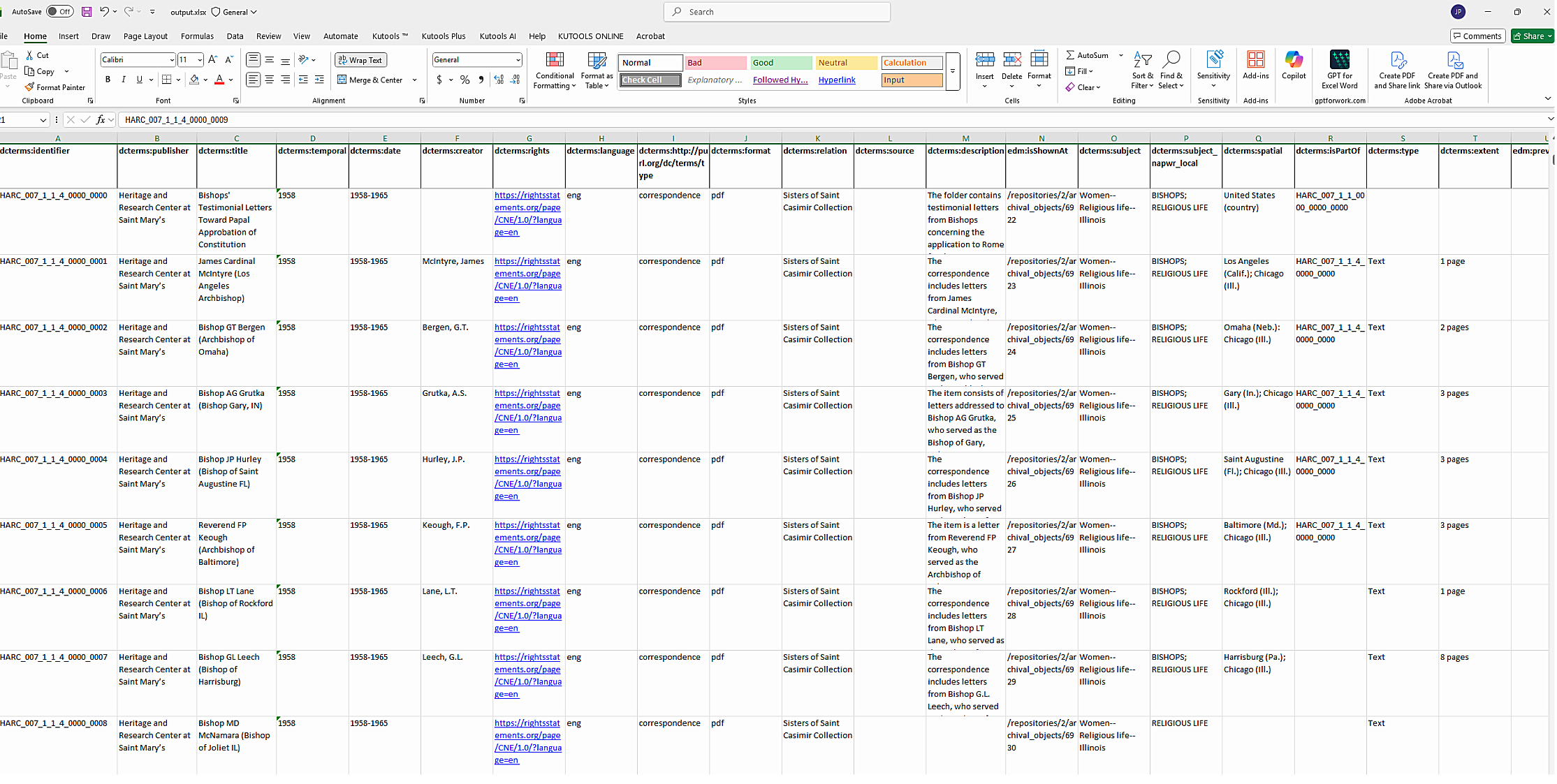
Open the output Excel file to find your portal-ready data and quality control reports. There will be 3-5 sheets in the tab section of your saved output.
Enriched Worksheet
.png)
Mapped Portal Worksheet

Mapped Dublin Core Worksheet
Understanding Your Output File
The output Excel workbook contains five important sheets:
| Sheet Name | What It Contains |
|---|---|
| enriched | Original data PLUS Catholic subjects, vocations, and agent names added. |
| mapped_portal | ✓ USE THIS for portal uploads. Column headers match the portal template exactly. |
| mapped_dc | Dublin Core format for metadata exports and interoperability. |
| mapping_log | Quality control: lists any missing data or mapping issues to review. |
| mapping_spec | Reference copy of the mapping spreadsheet used for this conversion. |
mapped_portal sheet for uploading to the NAPWR Portal. The column headers in this sheet are formatted to match the portal template exactly.Catholic Subject Headings Explained
The system automatically matches Catholic-specific terminology in your descriptions and adds them as controlled subjects. You will find:
| Column Name | What It Contains |
|---|---|
| napwr:catholic_subjects_all | All Catholic subject headings found |
| napwr:catholic_subjects_vocations | Religious titles and roles (Sister, Mother, Abbess, Novice, etc.) |
| napwr:catholic_subjects_topics | Topical subjects (education, healthcare, mission work, etc.) |
| napwr:agents_found | Names of individuals with religious titles identified |
Common Questions
What if I get an error when running the script?
Check that all files are in the same folder and that your file names in the command exactly match your actual file names (including .xml or .xlsx extensions).
How do I know if the Catholic subjects were matched correctly?
Check the enriched sheet and review the napwr:catholic_subjects_all column and compare it with your original descriptions to verify that the matches make sense.
What should I check in the mapping_log sheet?
This sheet shows any fields that could not be mapped. If you see warnings, review those records to ensure they have complete data in ArchivesSpace.
Getting Help
If you need assistance:
✓ Check the mapping_log sheet for specific error messages
✓ Verify all files are in the correct location
✓ Review the enriched sheet to see what data was captured
✓ Contact your technical coordinator with the output file and error messages